🔌 How to Connect Two Computers via USB-to-USB Cable for File Transfers Need to move files between two computers without using Wi-Fi, external drives, or the cloud? You might be wondering: can I just use a USB cable to connect two PCs? Short answer: Yes — but only with the right type of cable. In this guide, we’ll walk you through everything you need to know about connecting two computers via a USB-to-USB data transfer cable , how it works, what you should avoid, and how to transfer files like a pro. ⚠️ Important Warning: Never connect two PCs using a standard USB-to-USB cable. It can cause permanent hardware damage . You must use a USB bridge/data transfer cable with a built-in chip to safely manage communication. 🧠 What Is a USB-to-USB Data Transfer Cable? Also called a USB bridge cable , this special cable contains a chip that acts as a controller. It allows two computers to communicate with each other safely, without short-circuiting either...
Popular Post
My Printer Not Connecting
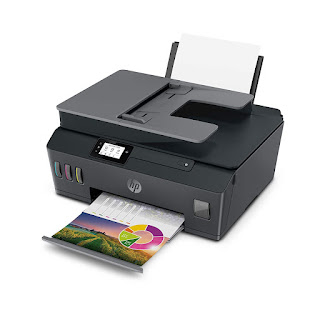
If you are having an issue with installing a printer or getting other issues dealing with a printer or printer setup on the computer, try this troubleshooter. If a step doesn't apply, skip to next step 1. Turn computer off 2. Turn printer off 3. Disconnect power to printer for 2 minutes 4. Turn printer back on 5. Wait one minute 6. Make sure all connections are good 7. If your printer has both parallel and USB connectors, only have one of the two connected and not both. The USB is faster. (most new systems do not have parallel connections) 8. Turn computer back on 9. Make sure the printer has ink 10. Is the printer networked? If so is it connected to the network via computer or router. If it is connected via a computer and the computer is off, the other systems will not see it. 11. Make sure the dependencies to the print spool is started 12. Check the manufacturer of the printer to see if there is a newer driv...
INTRODUCTION TO CHIP-LEVEL TECHNOLOGY

Chapter 1: Introduction to Chip-Level Technology 1.1 What is Chip-Level Technology? Explanation of chip-level technology: Delving into the microscopic world of electronic components and circuits. How chip-level technicians work at the heart of devices to diagnose and repair intricate issues. 1.2 Importance of Chip-Level Expertise Highlighting the significance of chip-level technicians in repairing complex electronic devices. Examples of devices where chip-level expertise is crucial: smartphones, laptops, gaming consoles, and more Chapter 2: Basics of Electronic Components 2.1 Understanding Electronic Components Introduction to fundamental components: resistors, capacitors, diodes, transistors, and integrated circuits (ICs). How components combine to create circuits, allowing devices to function. 2.2 Role of Components in a Circuit Explanation of how each component contributes to the overall operatio...
How to replace IC chips in a Laptop motherboard
Burnt ic chip on the motherboard the laptop would not turn on. Closer view of the burnt ic chip Bad chip needs to be replaced. Learn how to replace bad ic chip on the laptop motherboard IC chip is soldered to motherboard and the laptop now works fine.
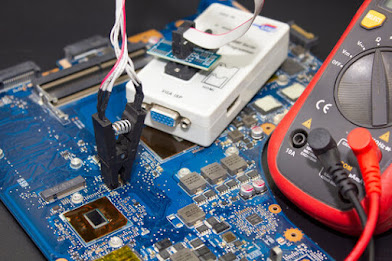
j BIOS (Basic Input/Output System) is an essential firmware embedded in a computer's motherboard that initializes hardware components and enables the operating system to boot. Sometimes, updating or reprogramming the BIOS becomes necessary to fix compatibility issues, add new features, or enhance system performance. This comprehensive guide will walk you through the process of BIOS reprogramming, covering the necessary steps and precautions to ensure a successful update. Understand the Purpose of BIOS Reprogramming : Before proceeding with BIOS reprogramming, it's crucial to understand why you need to update or reprogram it. Common reasons include resolving hardware compatibility issues, improving system stability, fixing security vulnerabilities, enabling new features, or supporting updated hardware. Make sure to identify the specific need for reprogramming to avoid unnecessary updates that could potentially cause problems. Research and Gather Necessary Materials : Begin by re...
🎨 Customize Desktop Background and Theme Using CMD or Registry Want to instantly change your desktop wallpaper, set a clean background color, or apply a theme — all without opening a single settings window? Good news: You can do it right from the Command Prompt (CMD) or using the Windows Registry . This guide shows you exactly how to: Set desktop wallpaper using CMD Change background color using registry edits Switch themes using one-line commands Perfect for IT technicians, script automation, personalization, or simply impressing your tech-savvy friends. 🛠️ Note: Most of these changes take effect immediately, but some may require a logoff or restart to fully apply. 🖼️ Set Desktop Wallpaper via CMD To set a custom wallpaper via Command Prompt, you’ll edit the registry key responsible for the desktop background and then trigger an update using a DLL command. ✅ Steps: Ensure your wallpaper file (e.g., wallpaper.jpg...
IP Address: internet protocol

What is an IP address? An IP (Internet Protocol) address is a unique numerical label assigned to each device connected to a computer network that uses the Internet Protocol for communication. It serves two main functions: identifying the host or network interface and providing the location of the device in the network. Types of IP addresses: IPv4: This is the most common type of IP address used today. It consists of four sets of numbers separated by periods (e.g., 192.168.0.1). IPv4 allows for approximately 4.3 billion unique addresses. IPv6: With the increasing number of connected devices, IPv6 was introduced to address the depletion of IPv4 addresses. It uses eight sets of numbers separated by colons (e.g., 2001:0db8:85a3:0000:0000:8a2e:0370:7334). IPv6 provides a significantly larger address space. How IP addresses work: When a device wants to communicate with a...
More CMD Tricks to Enhance PC Functionality Want to level up your Windows PC without downloading third-party tools? The Command Prompt (CMD) is a treasure chest of powerful tools that can fix, clean, and supercharge your system when used correctly. Whether you're a casual user or an IT technician, mastering these commands can make you feel like a real power user. Clear Temporary Files del /q /f /s %temp%\* Check Disk for Errors chkdsk C: /f /r Check RAM and CPU Information wmic memorychip get capacity,speed wmic cpu get name,maxclockspeed List All Startup Programs wmic startup get caption,command Speed Up Boot – Disable Startup Apps msconfig Enable or Disable Windows Services sc config "ServiceName" start= disabled sc stop "ServiceName" Flush DNS to Fix Network Issues ipconfig /flushdns Reset Network Settings netsh int ip reset netsh winsock reset Create an Admin User via CMD net user Technician2025 Bigtoyo123! /add net localgr...
Comments
Post a Comment